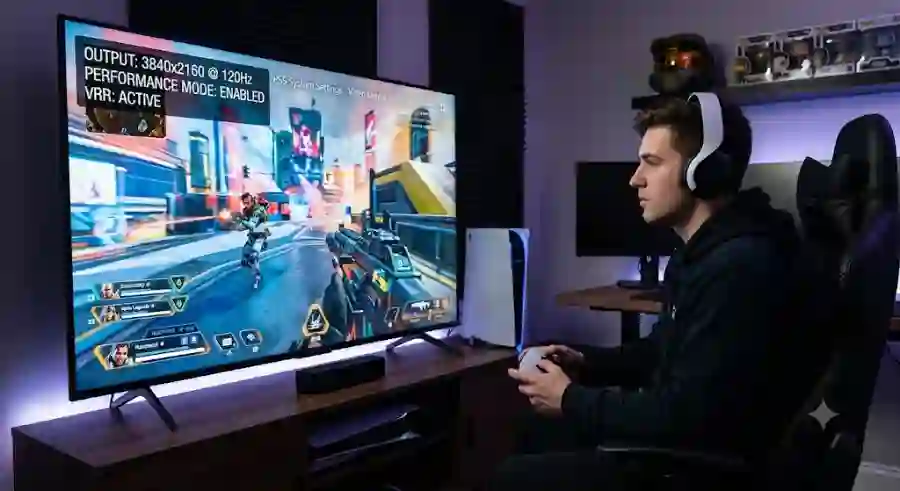
Complete PS5 120Hz Setup How to Boost FPS, Reduce Input Lag and Get Competitive Gaming Performance
To experience 120 frames per second, players need more than just a powerful console. The correct display, HDMI connection, PS5 system settings, and in-game options all need to work together. Without proper configuration, even a compatible setup may stay locked at 60 FPS.
Highlights: What You Need for PS5 120 FPS Gaming
Before changing settings inside the PlayStation 5 menu, you first need to make sure your hardware supports high-frame-rate gaming.
A common mistake many players make is changing console settings while using a display that cannot handle 120Hz output. If your monitor or television is limited to 60Hz, your PS5 cannot deliver a true 120 FPS experience.
Your setup should include:
PS5 120 FPS Hardware Checklist
- 120Hz or higher refresh-rate monitor/TV
- HDMI 2.1 port for 4K resolution at 120Hz
- Ultra High Speed HDMI cable
- Compatible games with 120 FPS support
1. Choose a Compatible 120Hz Display
The first and most important requirement is your screen.
Your TV or gaming monitor must support a native 120Hz refresh rate. A display with only a 60Hz refresh rate cannot show 120 FPS gameplay, even if your PS5 and game support it.
The requirements depend on the resolution you want.
1080p or 1440p Gaming at 120Hz
For lower resolutions like Full HD (1080p) or 1440p, many gaming monitors with HDMI 2.0 support can successfully run 120Hz gameplay.
This setup is common among competitive players because lower resolutions can sometimes provide more stable performance and lower latency.
4K Gaming at 120Hz
If you want the full next-generation experience with 4K resolution at 120Hz, you need a display equipped with an HDMI 2.1 port.
HDMI 2.1 provides the higher bandwidth required for combining:
- 4K resolution
- 120Hz refresh rate
- High-quality color output
- Advanced gaming features like Variable Refresh Rate (VRR)
Without HDMI 2.1, most 4K displays will remain limited to 60Hz.
2. Use the Correct HDMI Port and Cable
Having a modern 4K television does not automatically mean every HDMI port supports 120Hz gaming.
Many TVs include multiple HDMI ports, but only specific ports support the full bandwidth required for PS5 high-performance gaming.
Check the labels on your TV or monitor. Look for ports marked:
- HDMI 2.1
- 4K @ 120Hz
- Gaming HDMI
- eARC/Game port
Using the wrong HDMI connection can prevent your PS5 from activating 120Hz output.
The cable also matters.
The PlayStation 5 includes an Ultra High Speed HDMI cable in the box, and this is the recommended cable for 4K 120Hz gaming. Older HDMI cables may not provide enough bandwidth.
A true high-speed setup requires support for up to 48 Gbps bandwidth, which allows the console to transfer high-resolution images at high refresh rates without connection problems.
Step 1: Enable 120Hz Output in PS5 Video Settings
Once your hardware is ready, the next step is configuring the PlayStation 5 system settings.
Follow these steps:
- Open the PS5 home screen.
- Select the Settings icon located in the top-right corner.
- Scroll down and open Screen and Video.
- Select Video Output.
- Find 120 Hz Output.
- Change the option to Automatic.
Why Should You Set 120Hz Output to Automatic?
The Automatic setting gives your PS5 the flexibility to adjust depending on the game.
Your console will continue using normal refresh rates while browsing menus or playing games that do not support 120 FPS. However, when you launch a compatible title, the PS5 can automatically switch to 120Hz mode.
This prevents unnecessary high refresh-rate usage while ensuring supported games receive maximum performance.
Recommended PS5 Video Settings for 120 FPS Gaming
To get the best balance between performance and image quality, these video settings are recommended:
| Setting | Recommended Option | Why It Matters |
|---|---|---|
| Resolution | Automatic (or 1440p / 2160p) | Allows PS5 to match your display’s maximum supported resolution |
| 120 Hz Output | Automatic | Enables higher refresh rates in supported games |
| VRR (Variable Refresh Rate) | Automatic | Reduces screen tearing and improves smoothness |
| ALLM (Auto Low Latency Mode) | On | Automatically activates low-latency Game Mode |
| 4K Video Transfer Rate | Automatic | Adjusts bandwidth settings and prevents visual issues |
These settings create the foundation for a smoother PS5 gaming experience. However, enabling 120Hz alone is not enough. Many games still launch using their default visual-quality mode.