Why Your Hardware Might Be Failing the 2026 Update
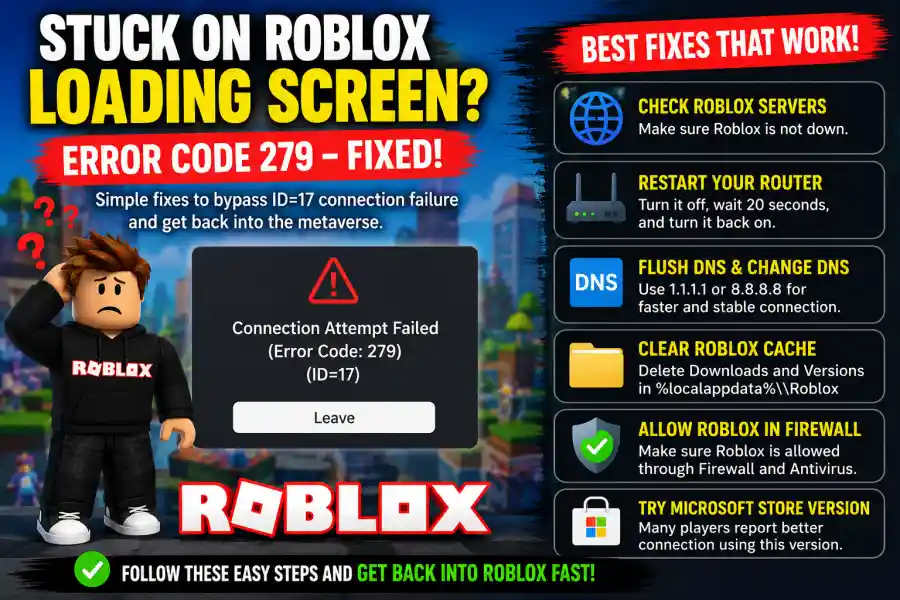
The good news is that Error Code 279 is usually fixable. In this guide, we’ll explain what causes the error and show you simple ways to solve it using basic steps anyone can follow.
What is Roblox Error Code 279?
Error Code 279 mainly means your device failed to connect properly to Roblox servers. In simple words, your internet and Roblox could not complete the connection process.
This usually happens because of:
- Slow or unstable internet
- Firewall or antivirus blocking Roblox
- Corrupted Roblox files
- DNS problems
- Router issues
- Large game files loading too slowly
Since Roblox games are becoming bigger and more advanced in 2026, many players with average internet connections are seeing this error more often.
Step 1: Check if Roblox Servers Are Down
Before changing settings on your computer, first make sure the problem is not from Roblox itself.
Sometimes Roblox servers go down in certain regions, and thousands of players cannot connect at the same time.
You can check:
- Roblox server status pages
- Downdetector
- Social media posts like #RobloxDown
If many players are reporting problems, then you simply need to wait until Roblox fixes the servers.
This is the easiest thing to check and can save you a lot of time.
Step 2: Restart Your Router and Device
This may sound simple, but it works surprisingly well.
Here’s what to do:
- Turn off your router
- Wait around 20 seconds
- Turn it back on
- Restart your computer or mobile device
Restarting your router refreshes your internet connection and clears temporary network problems.
Many players fix Error 279 with this step alone.
Step 3: Flush Your DNS Cache
Your computer stores internet address data in something called a DNS cache. Sometimes this data becomes outdated or corrupted.
If Roblox servers changed recently, your device may still try connecting to old addresses.
To fix this on Windows:
- Search for Command Prompt
- Right-click it and choose Run as Administrator
- Type this command:ipconfig /flushdns
- Press Enter
- Then type:netsh winsock reset
- Press Enter again
- Restart your computer
This refreshes your network settings and often fixes connection errors.
Step 4: Change Your DNS Settings
A slow DNS server can make Roblox connections fail.
Many players in 2026 are switching to faster public DNS services for better stability.
Best DNS Options
Cloudflare DNS
- 1.1.1.1
- 1.0.0.1
Google DNS
- 8.8.8.8
- 8.8.4.4
Cloudflare is usually faster, while Google DNS is known for stability.
How to change DNS on Windows:
- Open Network Settings
- Go to Change Adapter Options
- Right-click your internet connection
- Select Properties
- Open Internet Protocol Version 4 (IPv4)
- Enter the DNS numbers manually
After saving the settings, restart Roblox and test the game again.
Step 5: Clear Roblox Cache Files
Corrupted Roblox files are another big reason behind Error 279.
Temporary files from older updates can conflict with new game data.
To clear Roblox cache:
- Press Windows Key + R
- Type:%localappdata%
- Press Enter
- Open the Roblox folder
-
Delete the contents inside:
- Downloads
- Versions
Do not worry. Roblox will automatically download fresh files the next time you launch the game.
This step fixes many loading and connection problems.
Step 6: Disable Browser Hardware Acceleration
If you launch Roblox through browsers like Chrome or Edge, hardware acceleration can sometimes create problems.
It may overload your GPU while Roblox is loading large game assets.
To disable hardware acceleration:
- Open your browser settings
- Search for Hardware Acceleration
- Turn it OFF
- Restart the browser
After that, try launching Roblox again.
Step 7: Allow Roblox Through Firewall
Windows Firewall or antivirus software may block Roblox connections by mistake.
This became more common after security updates released in 2026.
To allow Roblox through Firewall:
-
Search for:
Allow an app through Windows Firewall - Find Roblox in the list
-
Make sure both:
- Private
- Public
are checked.
If Roblox is missing from the list, add it manually.
You can also temporarily disable your antivirus to test if it is causing the problem.
Step 8: Try the Microsoft Store Version
This is one of the best hidden fixes for Error 279.
Many players report that the Roblox version from the Microsoft Store works better than the website version.
The Store version uses different network handling and security settings, which can solve connection problems.
- Open Microsoft Store
- Search for Roblox
- Install it
- Launch Roblox from there instead of the browser
This trick has helped many Windows 10 and Windows 11 users in 2026.
Step 9: Use a Wired Connection
Wi-Fi can become unstable during online gaming, especially if many devices are connected.
If possible:
- Use an Ethernet cable
- Move closer to the router
- Disconnect unused devices from Wi-Fi
A stable internet connection reduces packet loss and improves Roblox loading speed.
Step 10: Reinstall Roblox Completely
If nothing works, reinstall Roblox from scratch.
Steps:
- Uninstall Roblox
-
Delete leftover Roblox folders from:
- AppData
- LocalAppData
- Restart your PC
- Download Roblox again
A fresh installation removes corrupted files and fixes many hidden issues.
Here’s a simple summary:
| Fix | Importance |
|---|---|
| Check Roblox servers | High |
| Restart router | High |
| Flush DNS | High |
| Change DNS to 1.1.1.1 | Medium |
| Clear Roblox cache | Medium |
| Allow through Firewall | Medium |
| Use Microsoft Store version | Medium |
| Reinstall Roblox | Last option |
Roblox games are becoming larger and more advanced every year. Because of this, connection problems like Error Code 279 are becoming more common in 2026.
Thankfully, most players can solve the issue by:
- restarting their network,
- clearing Roblox cache,
- changing DNS settings,
- or using the Microsoft Store version.
The most effective fixes right now are usually:
- Flushing DNS
- Clearing AppData files
- Switching to Cloudflare DNS
If you still cannot connect after trying everything, the issue may come from your internet provider or regional server routing.
In that case, checking Roblox community forums or trying a VPN may help.