Everything You Need to Know About Roblox FPS Unlocker, Higher Frame Rates, Safe Installation and the Best Settings for Smooth Gameplay
Unlike cheats or game modifications, this lightweight utility simply removes Roblox's default frame rate restriction, allowing your computer to render as many frames as your hardware can comfortably produce. The result is a smoother, more responsive gaming experience that better matches the capabilities of modern gaming monitors and graphics cards.
Highlights
- Understand why Roblox limits gameplay to 60 FPS by default.
- Learn what RBX FPS Unlocker actually does.
- Discover how higher frame rates improve responsiveness.
- Find out whether FPS unlockers are safe to use.
- Learn how Hyperion changed the way FPS unlocking works.
- Understand the difference between outdated unlockers and modern methods.
- Prepare your system before installing an FPS unlocker.
What Is a Roblox FPS Unlocker?
At its core, a Roblox FPS Unlocker, often referred to as rbxfpsunlocker, is a lightweight, open-source utility designed to remove Roblox's built-in 60 FPS frame limiter.
One of the biggest misconceptions surrounding this tool is that it somehow hacks or modifies Roblox. That simply isn't true.
Rather than changing gameplay mechanics, editing game files, or giving players an unfair advantage, the FPS Unlocker performs a much simpler task—it allows Roblox to use the full capabilities of your computer's hardware.
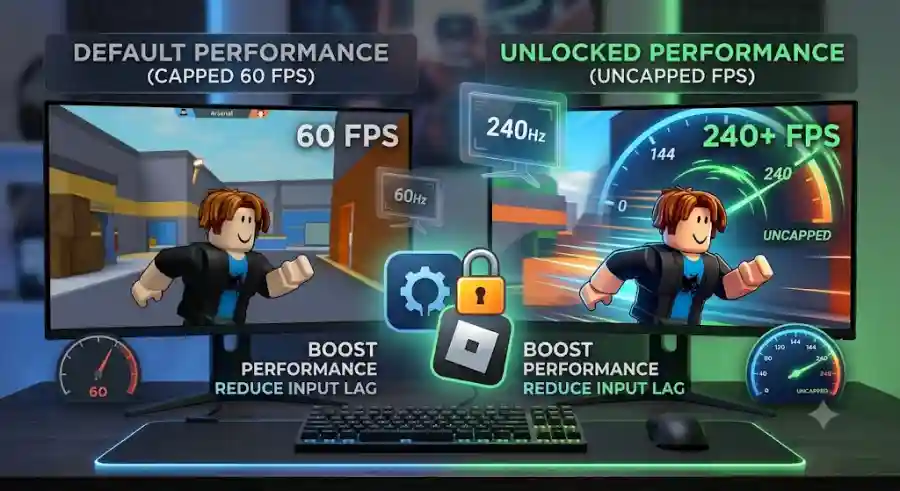
Normally, Roblox intentionally limits rendering to 60 frames every second. Even if your graphics card is capable of producing 200 or 300 frames, the game prevents it from doing so.
The FPS Unlocker removes this artificial limitation.
Instead of forcing your GPU to remain idle while waiting for the next frame, the software allows Roblox to render as many frames as your processor, graphics card, and monitor can comfortably support.
If your PC can deliver:
- 120 FPS
- 144 FPS
- 165 FPS
- 240 FPS
- or even higher
the unlocker allows Roblox to take full advantage of that performance.
This doesn't magically make a slow computer faster, but it ensures that capable hardware is no longer held back by the game's default frame limit.
Why Does Roblox Cap Frame Rates?
Many players wonder why Roblox still limits FPS when modern gaming hardware has advanced so much.
The answer lies in Roblox's history.
Roblox was originally designed to run across an enormous range of devices, including:
- Older desktop computers
- Budget laptops
- Tablets
- Smartphones
- High-end gaming PCs
Creating a platform that works reliably on all of these systems requires a predictable baseline for performance.
By limiting gameplay to 60 FPS, Roblox achieves several important goals:
Consistent Performance
A fixed frame rate helps maintain a similar gameplay experience across devices with vastly different hardware capabilities.
Lower Hardware Temperatures
Rendering hundreds of frames every second places additional stress on both the CPU and GPU.
Keeping the game capped reduces:
- Power consumption
- Heat generation
- Fan noise
- Battery usage on laptops
Stable Performance Across Millions of Devices
Since Roblox supports players using everything from integrated graphics to enthusiast gaming rigs, a universal frame cap helps avoid unexpected performance issues.
The Physics Problem That Existed Years Ago
Another important reason for the original FPS cap involved Roblox's older engine architecture.
Years ago, many physics calculations were directly tied to frame rates.
Increasing FPS could cause strange problems such as:
- Characters moving too quickly
- Objects flying across maps
- Unanchored parts behaving unpredictably
- Physics simulations becoming unstable
Modern Roblox has largely solved this issue.
Today, physics calculations are handled independently from rendering in the overwhelming majority of experiences.
That means increasing your frame rate generally won't break gameplay mechanics in around 99% of Roblox games.
Even so, the official client still ships with the long-standing 60 FPS limitation.
How Higher FPS Actually Changes Gameplay
Many people assume that increasing frame rates only makes games look prettier.
While smoother animations are certainly one benefit, higher FPS has a much bigger impact on competitive gameplay than many players realise.
Every frame your computer renders represents updated visual information.
The more frequently those updates appear, the faster you receive feedback from your inputs.
This directly affects several aspects of gameplay.
Lower Input Latency
One of the biggest improvements comes from reduced input delay.
Whenever you:
- Click your mouse
- Press a keyboard key
- Move your crosshair
- Rotate your camera
your computer must process that action before displaying it on screen.
At higher frame rates, the delay between your input and what you actually see becomes significantly shorter.
This creates a much more immediate feeling of control.
Competitive players often notice this improvement almost instantly after unlocking their frame rate.
Smoother Camera Movement
Fast camera movement is common in competitive Roblox experiences.
Whether you're flicking toward an enemy in Arsenal, tracking opponents in Rivals, or navigating intense combat encounters in Deepwoken, smoother rendering makes these movements appear much more natural.
Instead of small visual jumps between frames, camera rotations become fluid and continuous.
This makes it easier to follow moving targets and maintain accurate aim during fast-paced encounters.
Better Target Tracking
Higher FPS also improves motion clarity.
When opponents move rapidly across your screen, additional frames provide more visual information every second.
Rather than trying to predict movement between widely spaced frames, your eyes receive smoother updates, making it easier to:
- Track enemies
- Follow projectiles
- Adjust your crosshair
- React to sudden movements
For competitive shooters, even small improvements in visual clarity can make a noticeable difference.
Reduced Screen Tearing
If you're using a gaming monitor with a 144Hz, 165Hz, or 240Hz refresh rate, running Roblox closer to those refresh rates helps synchronise rendered frames with your display.
The result is less visible screen tearing, where horizontal lines appear because different parts of the screen display different frames simultaneously.
While technologies like G-Sync and FreeSync also help minimise tearing, unlocking Roblox's frame rate allows these high-refresh displays to perform much closer to their full potential.
Is Roblox FPS Unlocker Safe?
This is easily the question players ask most often before downloading any third-party utility.
After all, many Roblox users have spent years building their accounts, collecting limited items, earning achievements, and purchasing Robux. No one wants to risk losing that progress over a performance tool.
The good news is that modern FPS unlocking methods are considered safe when obtained from trusted, official sources.
Historically, Roblox staff publicly confirmed that using an FPS unlocker would not result in account bans.
Even Roblox CEO David Baszucki previously indicated during a developer conference that the platform welcomed frame rate unlocking, reassuring many players that improving client-side performance wasn't viewed as cheating.
The reason is simple.
FPS unlockers don't provide gameplay advantages such as:
- Auto aim
- Wall hacks
- Speed modifications
- Script execution
- Game exploits
They simply remove the software-imposed rendering limitation so your hardware can perform at its intended level.
How Hyperion Changed FPS Unlocking
The conversation around FPS unlockers became more complicated after Roblox introduced Hyperion, its advanced anti-cheat system.
Older versions of FPS unlockers worked by injecting code directly into Roblox's running memory.
Although their purpose was harmless, these programs behaved similarly to cheat software because they modified the game's active process.
Naturally, modern anti-cheat systems monitor this type of behaviour very closely.
As a result, outdated unlockers that rely on memory injection can potentially trigger security warnings or stop functioning correctly after Roblox updates.
Fortunately, the community has largely moved away from these older methods.
Modern FPS Unlocking Is Different
Today's recommended solutions no longer depend on intrusive memory injection.
Instead, popular methods—including Roblox's ClientAppSettings/FastFlags configuration and trusted launcher wrappers such as Bloxstrap—use native client preference overrides supported by Roblox itself.
Rather than editing live game memory, these modern approaches simply adjust supported configuration flags before Roblox launches.
Because of this, they operate much more cleanly, require less maintenance after updates, and are widely regarded as the safest way to unlock higher frame rates without risking compatibility issues.
For most players, these newer methods have effectively replaced traditional standalone memory-based unlockers while delivering the same smooth gameplay experience.
How to Install and Set Up Roblox FPS Unlocker
Once you understand how Roblox's frame limiter works, the next step is setting up an FPS unlocker correctly. The good news is that the process is simple and usually takes no more than two minutes.
Today, there are two widely used methods for unlocking Roblox's frame rate:
- The classic RBX FPS Unlocker (rbxfpsunlocker).
- A modern launcher solution like Bloxstrap, which integrates FPS unlocking directly into the Roblox client.
Both methods are popular within the Roblox community, but each offers a slightly different experience depending on your preferences.
Method 1: Install the Classic RBX FPS Unlocker
If you're looking for a lightweight utility that runs quietly in the background without changing the way Roblox launches, the standalone RBX FPS Unlocker remains an excellent option.
Step 1: Download the Official Release
Always download the latest version from the official GitHub repository.
Avoid downloading the program from:
- Unknown file-sharing websites
- Random forums
- Third-party download portals
- Suspicious media links
Since the project is open source, downloading from the official source ensures you're getting clean, up-to-date software rather than a modified version.
Step 2: Extract the ZIP File
After downloading the archive:
- Open your Downloads folder.
- Right-click the ZIP file.
- Select Extract All.
- Choose a permanent location, such as your Desktop, Documents folder, or a Utilities folder.
Keeping the files in one location helps prevent accidental deletion during future updates.
Step 3: Launch the Program
Double-click rbxfpsunlocker.exe.
You may briefly notice a command prompt window appear before disappearing. This is completely normal.
Look toward the bottom-right corner of your Windows desktop near the clock.
A small icon should now appear in the system tray, confirming that the application is running.
Step 4: Configure Your Frame Rate
Right-click the tray icon to open the settings menu.
Navigate to FPS Cap, then choose your preferred frame rate.
Common options include:
- 120 FPS
- 144 FPS
- 165 FPS
- 240 FPS
- Uncapped
Selecting a frame rate that matches your monitor generally delivers the smoothest experience while avoiding unnecessary GPU workload.
Step 5: Launch Roblox
Open Roblox as you normally would.
Once inside a game, press Shift + F5 to display performance statistics and verify that your FPS is no longer locked at 60.
If everything has been configured correctly, you'll immediately notice smoother camera movement and more responsive gameplay.
Pro Tip
If you play Roblox regularly, enable Quick Start or add RBX FPS Unlocker to your Windows Startup folder.
This allows the utility to launch automatically whenever your computer starts, eliminating the need to run it manually before every gaming session.
Method 2: Use Bloxstrap for a More Modern Experience
Many players now prefer Bloxstrap, a community launcher that offers a cleaner, more integrated approach to Roblox customisation.
Instead of relying on a separate executable running in the background, Bloxstrap uses Roblox's supported client configuration options, making the entire experience feel more seamless.
Installing Bloxstrap
The setup process is straightforward:
- Download the latest release from the official Bloxstrap GitHub page.
- Open the installer.
- Access the configuration menu before launching Roblox.
- Navigate to the Display or Fast Flags section.
- Enter your preferred FPS limit.
- Save your settings.
- Launch Roblox normally.
Because Bloxstrap applies supported client preference overrides, there is no need for a separate background utility once everything has been configured.
For many users, this has become the preferred long-term solution.
Fine-Tuning Your FPS Settings
Unlocking your frame rate is only part of the equation.
For the best experience, your FPS limit should match your monitor and hardware rather than simply selecting "Uncapped."
Running unlimited frames isn't always beneficial.
If your graphics card constantly jumps between 180 FPS and 320 FPS, you'll experience inconsistent frame pacing, higher temperatures, increased fan noise, and unnecessary power consumption.
Instead, aim for a stable frame rate your system can maintain comfortably.
Recommended FPS Caps
| Display Setup | Recommended FPS | Why It Works |
|---|---|---|
| Standard 60Hz Monitor | 60–120 FPS | Higher values offer minimal visual improvement while increasing GPU usage. |
| 120Hz Monitor | 120 FPS | Matches the display refresh rate for smooth gameplay. |
| 144Hz Gaming Monitor | 144 FPS | Provides excellent responsiveness and fluid motion. |
| 165Hz Monitor | 165 FPS | Keeps gameplay perfectly aligned with your display. |
| 240Hz Monitor | 240 FPS | Ideal for competitive gaming with high-end hardware. |
| 360Hz Displays | 360 FPS or Uncapped | Best suited to enthusiast systems capable of maintaining extremely high frame rates. |
| Budget Laptop or Integrated Graphics | 60–90 FPS | Reduces overheating while maintaining consistent performance. |
Remember, stable performance is almost always better than chasing the highest possible FPS number.
Pair FPS Unlocking with G-Sync or FreeSync
If your monitor supports NVIDIA G-Sync or AMD FreeSync, combining these technologies with an FPS unlocker can significantly improve visual smoothness.
Variable Refresh Rate (VRR) synchronises your monitor's refresh rate with the number of frames produced by your graphics card.
This reduces:
- Screen tearing
- Micro-stuttering
- Frame pacing issues
For the best results:
- Enable G-Sync or FreeSync in your graphics control panel.
- Set your FPS cap approximately 3–4 frames below your monitor's maximum refresh rate.
For example:
- 144Hz monitor → Cap at 141 FPS
- 165Hz monitor → Cap at 162 FPS
- 240Hz monitor → Cap at 237 FPS
This keeps VRR active while minimising input latency.
Troubleshooting Common Problems
Even though FPS unlockers are relatively simple, occasional issues can arise—especially after Roblox client updates.
Fortunately, most problems are easy to solve.
Problem 1: FPS Is Still Locked at 60
If Roblox refuses to exceed 60 FPS, several factors may be responsible.
Check V-Sync
Your graphics driver may still be forcing Vertical Sync.
Open either:
- NVIDIA Control Panel
- AMD Radeon Software
- Intel Graphics Command Center
Disable V-Sync for Roblox if necessary.
Try Full-Screen Mode
Windows sometimes limits windowed applications.
Press:
Alt + Enter
or
F11
to switch between windowed and full-screen modes.
Update the Unlocker
Whenever Roblox receives a major client update, older unlockers may temporarily stop working.
Installing the latest version usually resolves the issue.
Problem 2: Micro-Stuttering
Many players assume higher FPS automatically means smoother gameplay.
That's not always true.
Imagine your frame rate constantly fluctuating:
- 220 FPS
- 190 FPS
- 140 FPS
- 250 FPS
- 160 FPS
Although the average FPS appears impressive, those constant changes create inconsistent frame times, making gameplay feel less smooth.
A stable 144 FPS often feels significantly better than wildly fluctuating frame rates above 200.
Limiting your FPS to a realistic number your PC can consistently maintain usually delivers the best overall experience.
Problem 3: High GPU Temperatures
Removing Roblox's frame limiter allows your graphics card to work much harder.
If temperatures become excessive:
- Lower your FPS cap.
- Reduce Roblox graphics settings.
- Improve airflow inside your PC.
- Clean dust from cooling fans.
- Close unnecessary background applications.
These small adjustments can dramatically reduce temperatures while maintaining excellent performance.
Why FPS Unlockers Matter for Competitive Roblox
The popularity of FPS unlockers reflects a broader shift in PC gaming.
Today's players increasingly own:
- High-refresh gaming monitors
- Powerful graphics cards
- Faster processors
- Variable refresh rate displays
Modern competitive games are designed to take advantage of this hardware, and Roblox has evolved alongside those expectations.
Games like:
- Arsenal
- Phantom Forces
- Rivals
- Deepwoken
- Blox Fruits
- Counter Blox
place a strong emphasis on reaction speed, precise aiming, and fluid movement.
Reducing input latency by even a small amount can make these games feel significantly more responsive.
While an FPS unlocker won't magically improve your aim or increase your skill level, it allows your hardware to perform without being artificially restricted.
For competitive players, that smoother experience is often worth the short setup process.
Industry Impact
The widespread adoption of FPS unlockers has influenced the Roblox community in several ways.
Content creators, competitive players, and developers frequently recommend higher frame rates for users with capable hardware.
Community launchers such as Bloxstrap have also expanded beyond FPS unlocking, offering additional quality-of-life improvements, customisation options, and client configuration tools.
At the same time, Roblox's introduction of the Hyperion anti-cheat system encouraged the community to move away from older memory-injection methods and adopt safer approaches based on supported client settings.
This evolution has helped make FPS unlocking more reliable, easier to maintain, and more compatible with future Roblox updates.
Why This Matters
If you've spent money on a high-refresh-rate monitor and a capable gaming PC, being limited to 60 FPS prevents you from experiencing the full performance your hardware can deliver.
Unlocking Roblox's frame rate provides several practical benefits:
- Lower input latency
- Smoother camera movement
- Better target tracking
- Reduced screen tearing
- Improved responsiveness
- More fluid gameplay
These improvements may seem subtle at first, but many players notice the difference almost immediately, particularly in fast-paced competitive experiences.