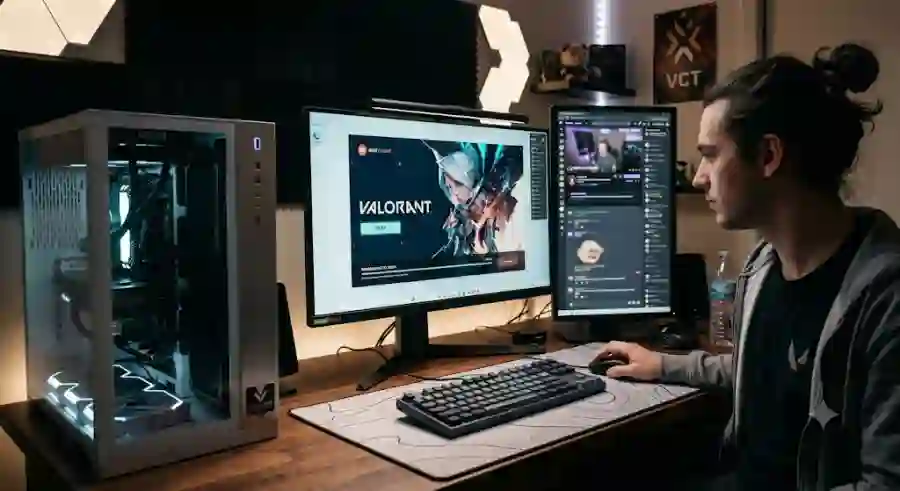
Everything You Need to Know Before Playing Valorant Download Size, Installation Steps, PC Requirements and Performance
Although Valorant is completely free to download, the installation process is slightly different from many other PC games. Players must install Riot’s dedicated launcher, set up Riot Vanguard anti-cheat software, and, especially on Windows 11 systems, ensure specific security features are enabled.
For new players, these extra steps can sometimes create confusion. Installation errors, Vanguard problems, or system compatibility issues can prevent the game from launching properly.
Valorant System Requirements: Can Your PC Run the Game?
One of the biggest reasons behind Valorant’s success is its excellent optimization.
Unlike many modern competitive shooters that require expensive gaming hardware, Valorant was designed to run smoothly even on lower-end computers. Players do not need a powerful gaming PC to enjoy the experience.
However, because Valorant is a highly competitive FPS game, performance matters. Higher frame rates can improve reaction speed, aiming accuracy, and overall gameplay consistency.
A player running the game at a stable 144 FPS will usually have a competitive advantage compared with someone experiencing frame drops or inconsistent performance.
Before downloading the Valorant installer, check whether your system matches the official requirements.
Minimum Valorant PC Requirements (30 FPS)
These specifications represent the basic hardware needed to run Valorant at playable performance.
Operating System
- Windows 10 (Build 19041+) or Windows 11 64-bit
Processor
- Intel Core 2 Duo E8400
- AMD Athlon 200GE
Memory
- 4 GB RAM
Graphics Card
- Intel HD 4000
- AMD Radeon R5 200 series
Video Memory
- 1 GB VRAM
Players using minimum specifications can run Valorant, but they should expect basic performance rather than a competitive high-refresh-rate experience.
Recommended Valorant PC Requirements (60 FPS)
For players who want smoother gameplay and more stable performance, Riot recommends a slightly stronger setup.
Operating System
- Windows 10 / Windows 11 64-bit
Processor
- Intel Core i3-4150
- AMD Ryzen 3 1200
Memory
- 4 GB RAM8 GB RAM is highly recommended for better stability
Graphics Card
- NVIDIA GeForce GT 730
- AMD Radeon R7 240
Video Memory
- 1 GB VRAM
This configuration allows most players to enjoy Valorant comfortably at around 60 frames per second.
High-End Competitive Valorant Requirements (144+ FPS)
Competitive players who want the smoothest possible experience should aim for stronger hardware.
High FPS is especially important in tactical shooters because smoother visuals help players track enemies, react faster, and maintain precise mouse control.
Operating System
- Windows 10 / Windows 11 64-bit
Processor
- Intel Core i5-9400F
- AMD Ryzen 5 2600X or newer
Memory
- 8 GB or 16 GB DDR4/DDR5 RAM
Graphics Card
- NVIDIA GeForce GTX 1050 Ti
- AMD Radeon R7 370
Video Memory
- 4 GB VRAM or higher
This type of setup is ideal for players who want competitive-level performance, especially when using high-refresh-rate gaming monitors.
Important Windows 11 Requirement: TPM 2.0 and Secure Boot
Windows 11 users should pay special attention before installing Valorant.
Riot Vanguard, Valorant’s anti-cheat system, requires certain security features to be active on Windows 11 computers.
Your PC must have:
- TPM 2.0 (Trusted Platform Module) enabled
- UEFI Secure Boot enabled
Without these features, players may experience launch errors such as:
- VAN 9001
- VAN 9003
These security requirements help Riot maintain competitive integrity by preventing certain types of unauthorized software from interfering with the game.
Valorant Download Size and Storage Requirements
Before beginning the installation, make sure your storage drive has enough available space.
The initial Riot installer is very small, but the complete game requires significantly more storage after downloading all files.
Valorant Download Details
Initial Setup Download
- Approximately 60 MB to 100 MB
- Includes Riot Client installer files
Full Valorant Game Download
- Approximately 30 GB
Recommended Free Storage Space
- 35 GB to 40 GB
Keeping extra space available is important because Valorant receives regular updates, including:
- New agent releases
- Balance updates
- New maps
- Gameplay improvements
- Security patches
A nearly full drive can also affect overall PC performance and installation stability.
SSD vs HDD: Which Storage Drive Is Better for Valorant?
Technically, Valorant can run on both traditional hard drives and modern SSD storage.
However, installing Valorant on an SSD (Solid State Drive) provides noticeable advantages.
An SSD can improve:
- Game launch speed
- Agent selection loading time
- Match loading speed
- Overall system responsiveness
While an HDD can still run the game, SSD installation is highly recommended for players who want a smoother experience.
In competitive gaming, small delays can affect gameplay, so faster loading times are always beneficial.
Step-by-Step: How to Download and Install Valorant on PC
Installing Valorant is simple when using official Riot Games sources.
Players should always avoid unofficial download websites or third-party installers because they may contain:
- Malware
- Modified game files
- Corrupted installation packages
The safest method is downloading Valorant directly through Riot’s official platform.
Step 1: Create or Sign In to Your Riot Account
The first requirement is a Riot Games account.
Follow these steps:
- Open your web browser and visit the official PlayVALORANT.com website.
- Click the "Play Free" button displayed on the homepage.
- Existing Riot players who already use games like League of Legends or Teamfight Tactics can select Sign In.
- New players should choose Create One and complete the account setup process.
During registration, you will create:
- Riot ID
- Email address
- Password
Your Riot account will be used to access Valorant and other Riot Games services.
Step 2: Download the Official Valorant Installer
After signing into your Riot account:
- The website will automatically redirect you to the official download page.
- Click the Download button.
- Download the file named:
Install-VALORANT.exe
- Save the installer file to your preferred location, such as:
- Downloads folder
- Desktop
- Secondary storage drive
Once the installer finishes downloading, you are ready for the setup process.
Step 3: Run the Valorant Setup and Install Riot Client
After downloading the official Valorant installer, the next step is installing the Riot Client and preparing the game files.
Follow these steps carefully:
- Locate the downloaded file:
Install-VALORANT.exe
- Double-click the installer to begin the setup process.
- Windows may display a User Account Control (UAC) security message asking for administrator permission.
- Click Yes to allow the installer to make changes to your system.
- If you want to change where Valorant is installed, select Advanced Options.
This option allows you to choose another installation location, such as moving the game from your primary:
-
C:drive
to a secondary:
-
D:SSD drive
- Click Install to begin the installation.
The installer will first download and install the Riot Client, which acts as the central launcher for Valorant.
After Riot Client installation completes, it will automatically begin downloading the remaining Valorant game files in the background.
Depending on your internet speed and storage performance, the complete installation time may vary.
Step 4: Install Riot Vanguard Anti-Cheat
During the Valorant installation process, Riot Client will automatically ask you to install Riot Vanguard.
Vanguard is Riot Games’ proprietary anti-cheat technology created specifically to protect competitive matches.
Unlike traditional anti-cheat programs, Vanguard operates at a deeper system level to detect and prevent unauthorized software that could create unfair advantages.
Important Things to Know About Riot Vanguard:
- Vanguard is completely mandatory for Valorant.
- You cannot launch or play Valorant without Vanguard running.
- The anti-cheat system must be active before entering a match.
- A complete PC restart is required after installation.
The restart is necessary because Vanguard installs system drivers that need to initialize during the computer boot process.
Skipping this restart can cause errors when attempting to launch the game.
Understanding Riot Vanguard and Its Security Requirements
Competitive fairness is one of Valorant’s biggest priorities.
Since the game is built around precise shooting mechanics, even small advantages from cheating software can negatively affect the entire experience.
To protect matches, Riot Vanguard operates at the kernel level, which means it works closer to the operating system than many traditional applications.
This advanced approach improves cheat detection but also creates additional system requirements, especially for Windows 11 users.
Why Valorant Requires TPM 2.0 and Secure Boot on Windows 11
Players using Windows 11 must have two important security features enabled:
- TPM 2.0 (Trusted Platform Module)
- UEFI Secure Boot
If these settings are disabled, Valorant may refuse to launch and display errors such as:
- VAN 9001
- VAN 9003
These errors usually indicate that Vanguard cannot verify the required security environment.
How to Enable TPM 2.0 and Secure Boot
Follow these steps to enable the required features:
Step 1: Enter BIOS/UEFI Settings
Restart your computer.
During startup, repeatedly press one of these keys:
-
DEL -
F2 -
F12
The exact key depends on your motherboard manufacturer.
Step 2: Enable TPM
Inside BIOS settings:
- Open the Security or Trusted Computing section.
- Find the TPM option.
- Enable it.
Depending on your processor brand, TPM may have a different name:
- AMD processors: fTPM
- Intel processors: PTT (Platform Trust Technology)
Make sure the feature is switched on.
Step 3: Enable Secure Boot
Next:
- Open the Boot settings menu.
- Change the operating system mode to UEFI.
- Enable Secure Boot.
- Save all changes.
- Restart your computer and return to Windows.
After completing these steps, Valorant should be able to properly initialize Vanguard.
Troubleshooting Common Valorant Download and Installation Problems
Even when your PC meets all requirements, installation problems can still happen.
Internet issues, security software conflicts, or corrupted files can interrupt the setup process.
Here are the most common Valorant installation problems and their solutions.
1. Valorant Download Stuck at 0% or Freezing During Installation
One of the most frustrating issues players experience is the download getting stuck.
Possible Causes:
- Background applications using system resources
- Antivirus blocking Riot files
- Firewall restrictions
- Unstable internet connection
- Lost network packets
Fix:
Try these solutions:
- Completely close Riot Client.
- Open Task Manager and make sure Riot processes are closed.
- Restart Riot Client.
- Right-click the Riot Client shortcut.
- Select:
Run as Administrator
- Temporarily disable third-party antivirus software.
- Add the Riot Games folder to your firewall whitelist.
After completing these steps, restart the download.
2. "Vanguard Not Initialized" Error
Another common problem occurs when Riot Vanguard fails to start correctly.
Cause:
Usually, this happens because:
- The PC was not restarted after Vanguard installation.
- The Vanguard service is not running.
- The anti-cheat driver failed to initialize.
Fix:
First, restart your computer.
In many cases, a simple reboot solves the issue.
If the problem continues:
- Press:
Win + R
- Type:
services.msc
- Press Enter.
- Find:
vgc
- Right-click it.
- Select:
Properties
- Change Startup Type to:
Automatic
- Click:
Start
- Apply the changes.
Launch Valorant again after completing these steps.
3. Corrupted Valorant Installation Files
Sometimes Valorant files can become damaged during downloading.
This usually happens because of:
- Unstable internet connections
- Interrupted downloads
- Unexpected shutdowns
Fix:
Riot Client includes a built-in repair feature.
Follow these steps:
- Open Riot Client.
- Click your profile icon in the top-right corner.
- Select:
Settings > Valorant
- Click:
Repair
The client will scan your installation and automatically replace damaged or missing files.
Essential Valorant Settings to Change After Installation
After successfully downloading Valorant and restarting your computer, avoid jumping immediately into competitive matches.
Take a few minutes to adjust your settings first.
Proper configuration can improve:
- FPS stability
- Input response
- Mouse accuracy
- Overall gameplay smoothness
1. Enable Fullscreen Mode
Always use:
Fullscreen Display Mode
Avoid using:
- Windowed mode
- Borderless window mode
Fullscreen generally provides better performance and lower input delay because the game receives direct control over rendering.
In a competitive shooter like Valorant, even small input delays can affect aiming performance.
2. Limit Background and Menu FPS
Valorant can continue using GPU resources while sitting in menus.
To prevent unnecessary hardware usage:
Enable:
- Limit FPS in Menus
- Limit FPS in Background
This helps reduce GPU load when you are not actively playing.
It can also improve system temperature and power efficiency.
3. Disable V-Sync
For competitive FPS games, V-Sync is usually not recommended.
Although it can reduce screen tearing, it introduces additional input latency.
Since Valorant depends heavily on quick reactions and accurate mouse movement:
Turn:
V-Sync: OFF
This provides a more responsive aiming experience.
4. Enable NVIDIA Reflex
Players with supported NVIDIA GeForce graphics cards should enable:
NVIDIA Reflex: On + Boost
This feature helps reduce system latency by improving communication between the CPU, GPU, and game engine.
Lower latency can help players:
- React faster
- Track opponents more accurately
- Improve shooting consistency
Why Valorant’s Easy Installation Matters for Competitive Gaming
Valorant’s popularity comes from its balance between accessibility and competitive depth.
Unlike many modern games that demand expensive hardware, Riot designed Valorant to run on a wide range of systems.
This approach helped the game build a massive global player base, including:
- Casual players
- Competitive ranked players
- Professional esports athletes
The combination of optimized performance, free-to-play access, regular updates, and strong anti-cheat protection has helped Valorant remain one of the most influential tactical shooters in modern gaming.